Build a Quiz App with JavaScript

Build a working quiz app that tracks answers and shows a score. Learn how to hold state, loop through questions, and respond to what the user clicks.

8 lessonsAbout 22 minFree, no account needed

What you learn

  • Managing state in JavaScript
  • Loops and arrays of objects
  • Handling click events

Lesson 1 of 8 · 2 min

What you are building

Today you build a quiz app: it asks a question, and tells the user whether their answer is right or wrong.

Prefer to follow along with a walkthrough? Watch it here, or open the Day 6 video in a new tab.

Day 6 walkthrough: Build a Quiz App

What you are learning:

  • how to check the user's answer against the correct answer using JavaScript;
  • how to show whether they got it right or not.

This is the day you meet conditionals, how programs make decisions.

This lesson has 1 quiz in the portal, where you tick off each step and get feedback on the code you write. Do this lesson free.
Lesson 2 of 8 · 2 min

Set up your Quiz App project

Set up a fresh StackBlitz project:

  1. Click New Project and choose the HTML, CSS, JS project.
  2. Rename it Quiz App.
  3. Delete page2.html.
  4. Open Settings and change the compile trigger to Save.

Last project of the week. Let's build it.

This lesson has a task checklist in the portal, where you tick off each step and get feedback on the code you write. Do this lesson free.
Lesson 3 of 8 · 3 min

Build the quiz page

In index.html, update the code to this:

<!DOCTYPE html>
<html>
  <head>
    <meta charset="UTF-8" />
    <meta name="viewport" content="width=device-width" />
    <title>Simple Quiz App</title>
    <link rel="stylesheet" href="styles.css" />
  </head>
  <body>
    <h1>Simple Quiz App</h1>
    <p>What is the capital of France?</p>
    <input type="text" id="answer-input" />
    <button onclick="checkAnswer()">Submit</button>
    <p id="result"></p>
    <script src="script.js"></script>
  </body>
</html>

That empty <p id="result"> is where we will show "Correct!" or "Incorrect."

In styles.css, update the code to this:

body {
  font-family: sans-serif;
  text-align: center;
}

h1 {
  margin-top: 30px;
}

In script.js, add the following code:

function checkAnswer() {
  const answer = document.getElementById('answer-input').value;
  if (answer.toLowerCase() == 'paris') {
    document.getElementById('result').innerHTML = 'Correct!';
  } else {
    document.getElementById('result').innerHTML = 'Incorrect.';  
  }
}

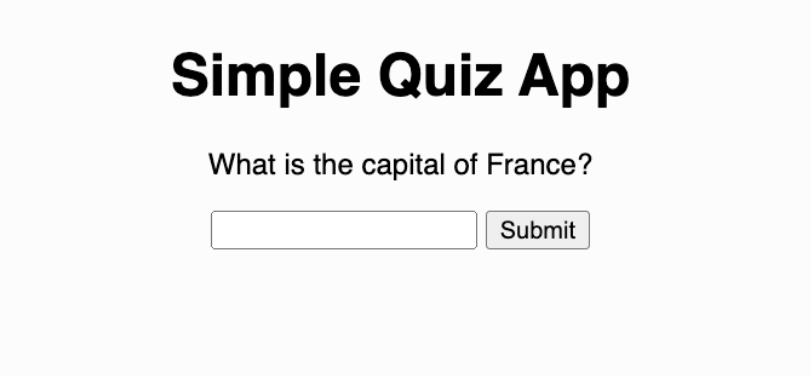
Run the project and it should look like this:

The quiz app with a question, input, and Submit button

This lesson has 1 quiz in the portal, where you tick off each step and get feedback on the code you write. Do this lesson free.

Lesson 4 of 8 · 3 min

Read the user's answer

When the user clicks Submit, the button calls checkAnswer(). The first thing that function does is read what they typed, using the DOM skills from Day 4:

function checkAnswer() {
  const answer = document.getElementById("answer-input").value;
  // ...decide if it is correct
}

document.getElementById("answer-input").value grabs the input box and reads its .value, whatever the user typed.

Now we have the answer in a variable. But how do we check whether it matches the correct one? That is where conditionals come in.

This lesson has 1 quiz in the portal, where you tick off each step and get feedback on the code you write. Do this lesson free.

Lesson 5 of 8 · 3 min

Conditionals: making decisions

Conditionals are how computers, and people, make decisions. "If it is raining, take an umbrella." Code works the same way.

In JavaScript we write this as an if-else block:

if (answer == "paris") {
  // runs when the answer IS paris
} else {
  // runs when it is NOT paris
}

Read it plainly: if the answer is equal to "paris", do the first thing; else (otherwise), do the second thing.

The == checks whether two values are equal. If they are, the if part runs. If not, the else part runs. Exactly one of the two always runs.

This lesson has 1 quiz in the portal, where you tick off each step and get feedback on the code you write. Do this lesson free.

Lesson 6 of 8 · 3 min

Show correct or incorrect

Now fill in the two branches. When the answer is right, we set the result paragraph to "Correct!"; when it is wrong, "Incorrect."

function checkAnswer() {
  const answer = document.getElementById('answer-input').value;
  if (answer == 'paris') {
    document.getElementById('result').innerHTML = 'Correct!';
  } else {
    document.getElementById('result').innerHTML = 'Incorrect.';  
  }
}

Each branch uses innerHTML (from Day 4) to write into the result paragraph.

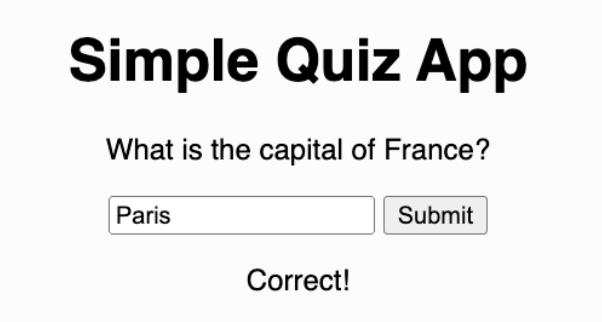
Type "paris" and submit:

The quiz showing Correct after a right answer

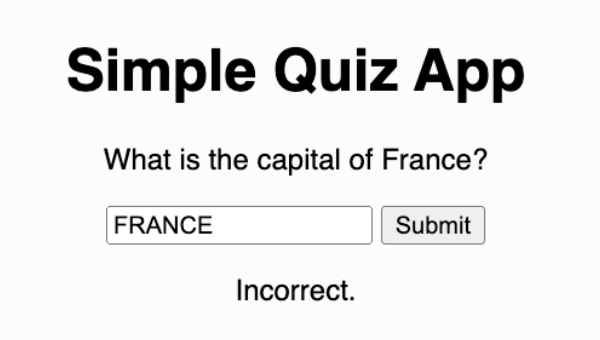
Type something wrong and submit:

The quiz showing Incorrect after a wrong answer

This lesson has 1 quiz in the portal, where you tick off each step and get feedback on the code you write. Do this lesson free.

Lesson 7 of 8 · 3 min

Handle any capitalisation

There is a subtle bug. What if the user types "PaRiS" or "Paris"? To a computer, "Paris" and "paris" are not equal, capital letters count. So a correct answer would be marked wrong.

The fix is .toLowerCase(), which turns any text into all lowercase before we compare:

function checkAnswer() {
  const answer = document.getElementById('answer-input').value;
  if (answer.toLowerCase() == 'paris') {
    document.getElementById('result').innerHTML = 'Correct!';
  } else {
    document.getElementById('result').innerHTML = 'Incorrect.';  
  }
}

Now "Paris", "PARIS", and "pArIs" all become "paris" before the check, so they all count as correct. Comparing in the same case makes your quiz fair.

This lesson has 1 quiz in the portal, where you tick off each step and get feedback on the code you write. Do this lesson free.

Lesson 8 of 8 · 3 min

Ship it, and an optional challenge

🎉 Congratulations! You have created a quiz application.

Today you learned conditionals: the if-else block, the == equality check, and .toLowerCase() for a fair comparison. Making decisions like this is at the heart of every program.

Optional challenges

  • Easy: change the question and its correct answer to your own.
  • Medium: add a second question. Give it a new input, button, and result with different ids, and a new function with a different name.

Figuring out that second question by searching and experimenting is exactly how real developers work.

Here is what you are building:

Custom quiz app demo

Your project is live at the URL in the preview's address bar. If you get stuck, compare with the full code example.

Day 6 completed! You have finished your first 6 projects. 🚀

This lesson has a task checklist in the portal, where you tick off each step and get feedback on the code you write. Do this lesson free.

Reading it is step one. Doing it is the point.

Everything above is the full teaching content, free to read. The same lessons in Sigmo add 6 quizzes that mark themselves, 2 hands-on checklists, and an AI coding buddy that answers questions about the exact line you are stuck on. No card needed.

Do this course free

You just read it. Now go build it.

The free trial puts you inside Sigmo, the learning portal our students use every day, with the quizzes, the checklists and an AI buddy on every lesson. No card needed.