Build a Random Quote Generator with JavaScript

Build a quote generator that picks a random quote on every click. Learn arrays, randomness, and how to change the page from JavaScript.

12 lessonsAbout 34 minFree, no account needed

What you learn

  • JavaScript arrays
  • Random selection
  • Updating the DOM

Lesson 1 of 12 · 2 min

What you are building

Today you build a random quote generator: click a button, and a quote from a famous person appears.

Prefer to follow along with a walkthrough? Watch it here, or open the Day 5 video in a new tab.

Day 5 walkthrough: Build a random quote generator

What you are learning:

  • how to create a list of quotes (an array);
  • how to show a quote at random.

This is the day you meet arrays, one of the most important tools in programming.

This lesson has 1 quiz in the portal, where you tick off each step and get feedback on the code you write. Do this lesson free.

Lesson 2 of 12 · 2 min

Set up your project

Set up a fresh StackBlitz project:

  1. Click New Project and choose the HTML, CSS, JS project.
  2. Rename it Random Quote Generator.
  3. Delete page2.html.
  4. Open Settings and change the compile trigger to Save.

You know this routine by now. Once it is ready, we start building.

This lesson has a task checklist in the portal, where you tick off each step and get feedback on the code you write. Do this lesson free.

Lesson 3 of 12 · 3 min

Build the quote card

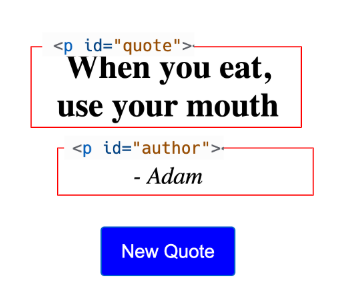
In index.html, add two paragraphs (for the quote and the author) and a button, all inside a <div>:

<!DOCTYPE html>
<html lang="en">
  <head>
    <meta charset="UTF-8" />
    <meta name="viewport" content="width=device-width" />
    <title>Home</title>
    <link rel="stylesheet" href="styles.css" />
  </head>
  <body>
    <div id="quote-container">
      <p id="quote"></p>
      <p id="author"></p>
      <button id="new-quote" onclick="setQuote()">New Quote</button>
    </div>
    <script src="script.js"></script>
  </body>
</html>

In styles.css, update the code to this:

#quote-container {
  display: flex;
  flex-direction: column;
  align-items: center;
  padding: 100px;
  text-align: center;
}

#quote {
  font-size: 50px;
  font-weight: bold;
  margin-bottom: 20px;
}

#author {
  font-size: 36px;
  font-style: italic;
}

#new-quote {
  background-color: blue;
  color: white;
  border: none;
  padding: 20px 30px;
  font-size: 28px;
  cursor: pointer;
  margin-top: 20px;
  border-radius: 5px;
}

In script.js, add the following code:

function setQuote() {
  const quote = document.getElementById('quote');
  const author = document.getElementById('author');
  const randomQuote = 'When you eat close your mouth - Adam';
  const quoteParts = randomQuote.split(' - ');
  quote.innerHTML = quoteParts[0];
  author.innerHTML = `- ${quoteParts[1]}`;
}

When you run it and click New Quote, a quote appears on a clean card:
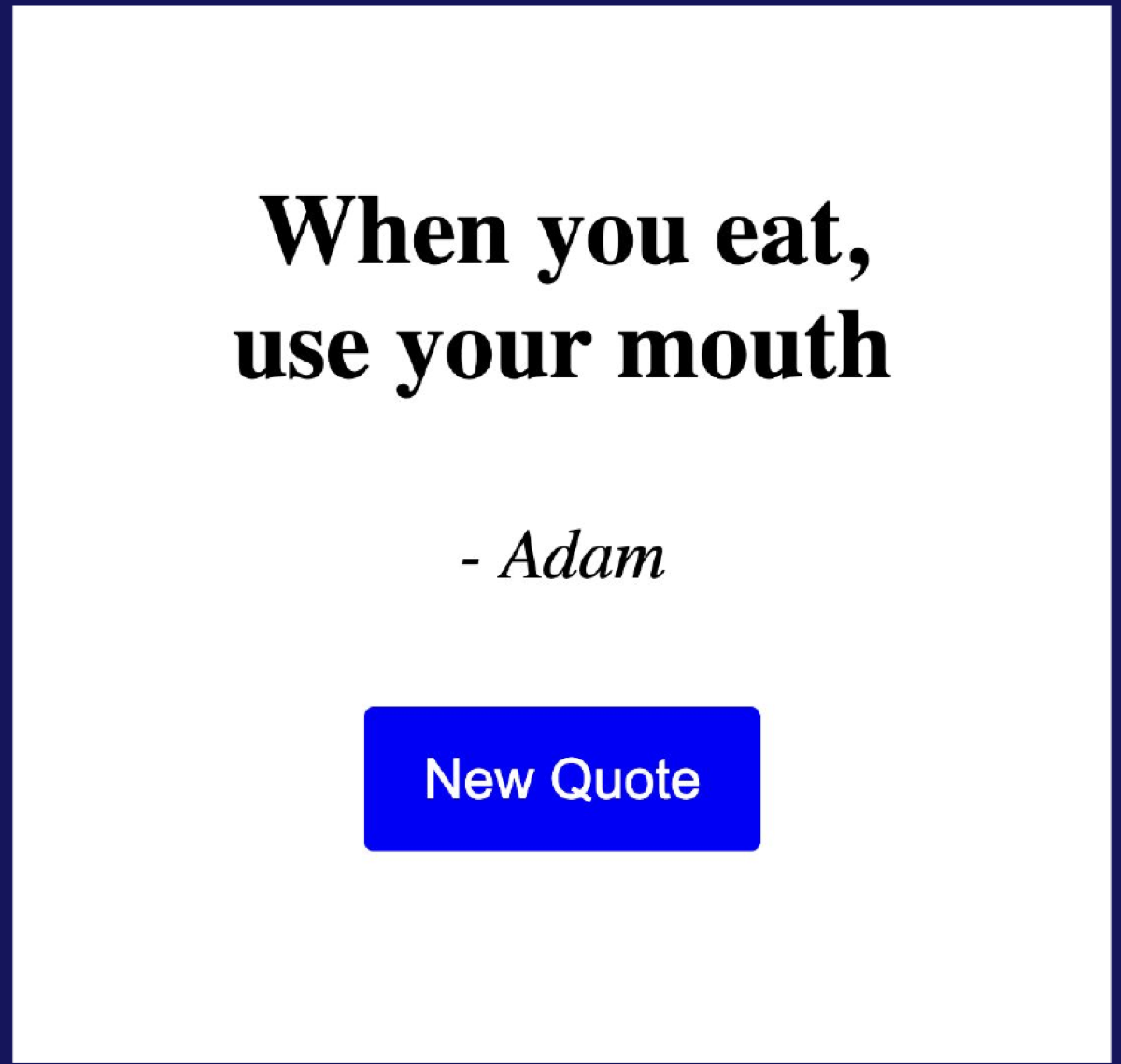
The quote generator showing a quote, author, and New Quote button


<div id="quote-container">
  <p id="quote"></p>
  <p id="author"></p>
  <button id="new-quote" onclick="setQuote()">New Quote</button>
</div>

A <div> (short for division) is an invisible container. It groups the paragraphs and button so we can position and style them together.
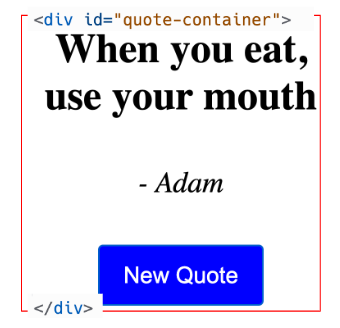
Div container guide

This lesson has 1 quiz in the portal, where you tick off each step and get feedback on the code you write. Do this lesson free.

Lesson 4 of 12 · 3 min

Style each part by id

There are two paragraphs on the card, so how does the CSS tell them apart? By their id, using the hash # selector you saw on Day 4.

  • #quote styles the quote paragraph. We make it bold with font-weight.
  • #author styles the author paragraph. We make it italic with font-style.
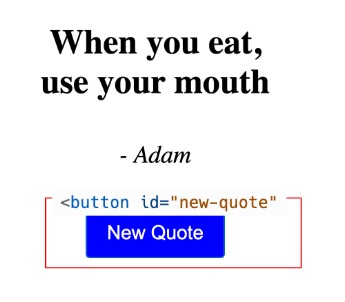
  • #new-quote styles the button, the same kind of button CSS as earlier days.
#quote {
  font-weight: bold;
}
#author {
  font-style: italic;
}

CSS id selector

Now style the button using its #new-quote id:

#new-quote {
  background-color: blue;
  color: white;
  border: none;
  padding: 20px 30px;
  font-size: 28px;
  cursor: pointer;
  margin-top: 20px;
  border-radius: 5px;
}

The styled New Quote button

Ids are what let you give two of the same element (here, two <p> tags) totally different looks.

This lesson has 1 quiz in the portal, where you tick off each step and get feedback on the code you write. Do this lesson free.

Lesson 5 of 12 · 3 min

Grab the elements and split a quote

In script.js, the setQuote function grabs the two paragraphs and shows a quote:

function setQuote() {
  const quote = document.getElementById("quote");
  const author = document.getElementById("author");

  const randomQuote = "When you eat, use your mouth - Adam";
  const quoteParts = randomQuote.split(" - ");

  quote.innerHTML = quoteParts[0];
  author.innerHTML = `- ${quoteParts[1]}`;
}

You already know getElementById from Day 4. The new part is randomQuote.split(" - "). What does that return? Let's look in the console. Add a line and save:

function setQuote() {
  const quote = document.getElementById("quote");
  const author = document.getElementById("author");

  const randomQuote = "When you eat, use your mouth - Adam";
  const quoteParts = randomQuote.split(" - ");
  console.log(quoteParts); // Add it here

  quote.innerHTML = quoteParts[0];
  author.innerHTML = `- ${quoteParts[1]}`;
}

Open the preview in its own tab, toggle developer tools, open the Console, and click New Quote. You will see this:

The console showing the split result as a two-item list

This lesson has 1 quiz in the portal, where you tick off each step and get feedback on the code you write. Do this lesson free.

Lesson 6 of 12 · 3 min

Arrays: lists of values

That thing in the console is an array.

["When you eat, use your mouth", "Adam"];

An array is like a list. In this case, a list of two strings: the quote and the author. Arrays use square brackets [ ] and separate the values inside with commas:

const randomQuote = 'When you eat, use your mouth - Adam';
const quoteParts = randomQuote.split(' - ');
// Output:
// const quoteParts = ['When you eat, use your mouth', 'Adam'];

So where did the array come from? .split(" - ") took your one string, "When you eat, use your mouth - Adam", and split it into two pieces wherever it found the separator " - ". One string in, a two-item array out.

This lesson has 1 quiz in the portal, where you tick off each step and get feedback on the code you write. Do this lesson free.

Lesson 7 of 12 · 3 min

Index: reading a value from an array

To read one item out of an array, we use its index, its position in the list.

Here is the surprising part: the first item is index 0, not 1. Think of it as counting the spaces from the start:

  • The first item is 0 spaces away, so it is index 0.
  • The second item is 1 space away, so it is index 1.

You read a value with square brackets and the index:

const quoteParts = ['When you eat, use your mouth', 'Adam'];

quote.innerHTML = quoteParts[0];
// Output:
// quote.innterHTML = 'When you eat, use your mouth';

author.innerHTML = `- ${quoteParts[1]}`;
// Output:
// author.innerHTML = ' - Adam';

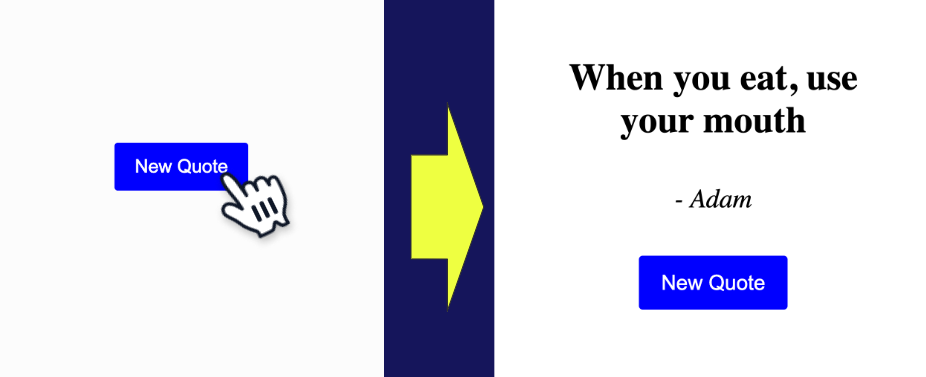
quoteParts[0] is the quote, quoteParts[1] is the author. Run it and click New Quote, and both show up correctly on the card.

Quote showed after New Quote button is clicked

This lesson has 1 quiz in the portal, where you tick off each step and get feedback on the code you write. Do this lesson free.

Lesson 8 of 12 · 3 min

Store a list of quotes

Right now there is only one quote. To pick a random one, we first need a list to pick from. In script.js, add several quotes in a quotes array:

// Add the quotes array here
const quotes = [
  'When you eat, use your mouth - Adam',
  'When you sleep, close your eyes - Other Adam',
];

function setQuote() {
  const quote = document.getElementById("quote");
  const author = document.getElementById("author");

  const randomQuote = "When you eat, use your mouth - Adam";
  const quoteParts = randomQuote.split(" - ");
  console.log(quoteParts);

  quote.innerHTML = quoteParts[0];
  author.innerHTML = `- ${quoteParts[1]}`;
}

Each item is a full "quote - author" string, the same shape you already know how to split. Add your own favourites too; the more you add, the more variety your generator has.

This lesson has a task checklist in the portal, where you tick off each step and get feedback on the code you write. Do this lesson free.

Lesson 9 of 12 · 3 min

Math.random() and length

To pick a random quote, we need a random number. Just as document has functions, Math contains a bunch of maths functions. Two are useful here.

Math.random() gives a random decimal between 0 and 1, like 0.351... or 0.513....

But we need a random index, not a decimal. So we scale it by how many quotes there are, using quotes.length (the number of items in the array):

Math.random() * quotes.length;

If Math.random() gives 0.1 and quotes.length is 2, that is 0.2. But there is no index 0.2, so we still need to turn it into a whole number.

This lesson has 1 quiz in the portal, where you tick off each step and get feedback on the code you write. Do this lesson free.

Lesson 10 of 12 · 3 min

Math.floor() for a whole index

Math.floor() rounds a number down to the nearest whole number. That turns our decimal into a real index.

Therefore, in script.js, update the code:

function setQuote() {
  const quote = document.getElementById("quote");
  const author = document.getElementById("author");

  const randomIndex = Math.floor(Math.random() * quotes.length); // Add this line
  const randomQuote = "When you eat, use your mouth - Adam";
  const quoteParts = randomQuote.split(" - ");
  console.log(quoteParts);

  quote.innerHTML = quoteParts[0];
  author.innerHTML = `- ${quoteParts[1]}`;
}

Follow the example through:

  • Math.random() returns 0.1
  • quotes.length returns 2
  • 0.1 * 2 is 0.2
  • Math.floor(0.2) is 0, a valid index!

Now use that index to pick the quote:

const randomQuote = quotes[randomIndex];

With randomIndex of 0, quotes[0] returns the first quote. A different random number picks a different quote each click.

In script.js, update the code:

function setQuote() {
  const quote = document.getElementById("quote");
  const author = document.getElementById("author");

  const randomIndex = Math.floor(Math.random() * quotes.length);
  const randomQuote = quotes[randomIndex]; // Update this line
  const quoteParts = randomQuote.split(" - ");
  console.log(quoteParts);

  quote.innerHTML = quoteParts[0];
  author.innerHTML = `- ${quoteParts[1]}`;
}

This lesson has 1 quiz in the portal, where you tick off each step and get feedback on the code you write. Do this lesson free.

Lesson 11 of 12 · 3 min

Put it all together

Here is the full setQuote function, combining the array, the random index, and the split:

const quotes = [
  'When you eat, use your mouth - Adam',
  'When you sleep, close your eyes - Other Adam',
];

function setQuote() {
  const quote = document.getElementById("quote");
  const author = document.getElementById("author");

  const randomIndex = Math.floor(Math.random() * quotes.length);
  const randomQuote = quotes[randomIndex];

  const quoteParts = randomQuote.split(" - ");
  quote.innerHTML = quoteParts[0];
  author.innerHTML = `- ${quoteParts[1]}`;
}

Save, then click New Quote a few times. Each click pulls a random quote from your list and shows it on the card. That is a real, working generator.

This lesson has a task checklist in the portal, where you tick off each step and get feedback on the code you write. Do this lesson free.

Lesson 12 of 12 · 3 min

Ship it, and an optional challenge

🎉 Congratulations! You have created a random quote generator.

Today you learned arrays (lists of values), indexes (zero-based positions), .split(), and Math.random() with Math.floor(). Arrays show up in almost every program you will ever write.

Optional challenges

  • Easy: add more quotes to your array.
  • Very hard: show a random image with each quote. Try this:
    1. Create an array of image URLs (you can use pravatar.cc).
    2. Pick a randomPhoto the same way you pick a random quote.
    3. Search "assign dom element src" and read the w3schools result to figure out how to change an image's src.

Searching things up like that is exactly what real developers do every day.

Here is what you are building:

Random image quote generator demo

Your project is live at the URL in the preview's address bar. If you get stuck, compare with the full code example.

Day 5 completed!

This lesson has a task checklist in the portal, where you tick off each step and get feedback on the code you write. Do this lesson free.

Reading it is step one. Doing it is the point.

Everything above is the full teaching content, free to read. The same lessons in Sigmo add 8 quizzes that mark themselves, 4 hands-on checklists, and an AI coding buddy that answers questions about the exact line you are stuck on. No card needed.

Do this course free

You just read it. Now go build it.

The free trial puts you inside Sigmo, the learning portal our students use every day, with the quizzes, the checklists and an AI buddy on every lesson. No card needed.